Email subscriptions
Every new post, in their inbox.
Readers type their email address on your blog, confirm it, and get each new post by email. It's sent from your own Cloudflare account, so your list stays yours. Switching it on takes about 5 minutes.
// what you need
What you need.
Your blog on your own domain
Such as blog.yourname.co.uk. Email has to come from a domain you own, or it lands in spam.
Cloudflare's Workers Paid plan
$5 a month, paid to Cloudflare. It includes 3,000 emails a month, then it's $0.35 per 1,000.
About 5 minutes
The installer does the fiddly parts: sending for your domain, the email records and a test email.
// switch it on
Switch it on in 5 steps.
// step 1
Put your blog on your own domain.
Already on your own domain? Skip to step 2.
If your blog is on a workers.dev address, open the installer, link your Cloudflare account and pick a domain under Where your blog lives. Press Update my blog and it moves there with every post and setting.
// step 2
Choose Workers Paid on Cloudflare.
Open Cloudflare's plans page and choose Workers Paid. It's $5 a month, paid to Cloudflare, not us. Blog by Email itself stays free.
// step 3
Press Check and switch on.
Open your blog's settings and go to Subscribers. You'll see the three steps, with a tick for each one that's done. Press Check and switch on.
Already on the installer page? Press Switch on email subscriptions instead. It does the same thing.
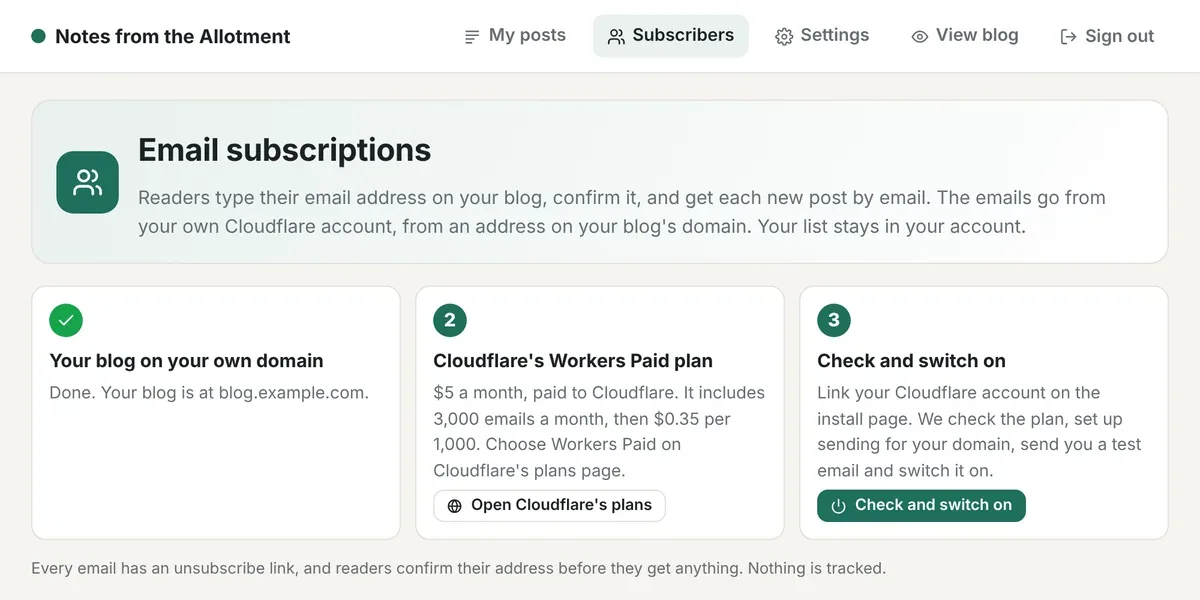
Subscribers, in your blog's settings.
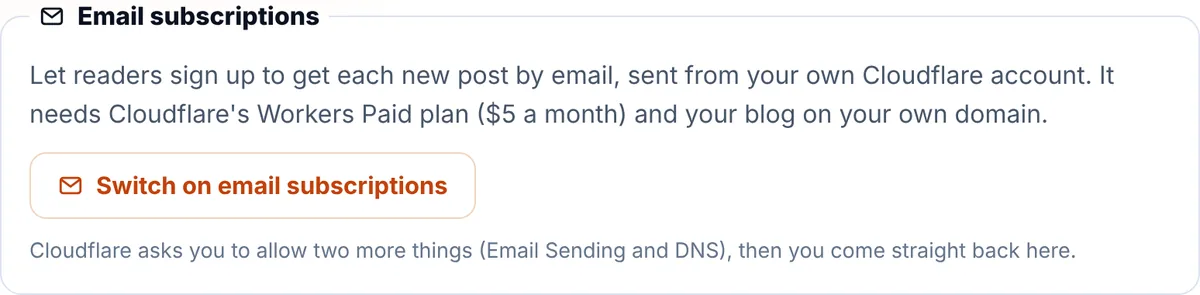
Or on the installer.
// step 4
Allow two more things on Cloudflare.
Cloudflare asks you to allow Email Sending and DNS, on top of what the installer had before. Press Allow and you come straight back.
Let readers get new posts by email is already ticked. Press Update my blog.

// step 5
Look for the test email.
The installer checks your plan, sets up sending for your domain and adds the email records Cloudflare asks for. It never changes your existing email.
When it says Email subscriptions are on, check your inbox. The test email comes from news@ at your blog's domain. That's it: the sign up box is now on your blog.
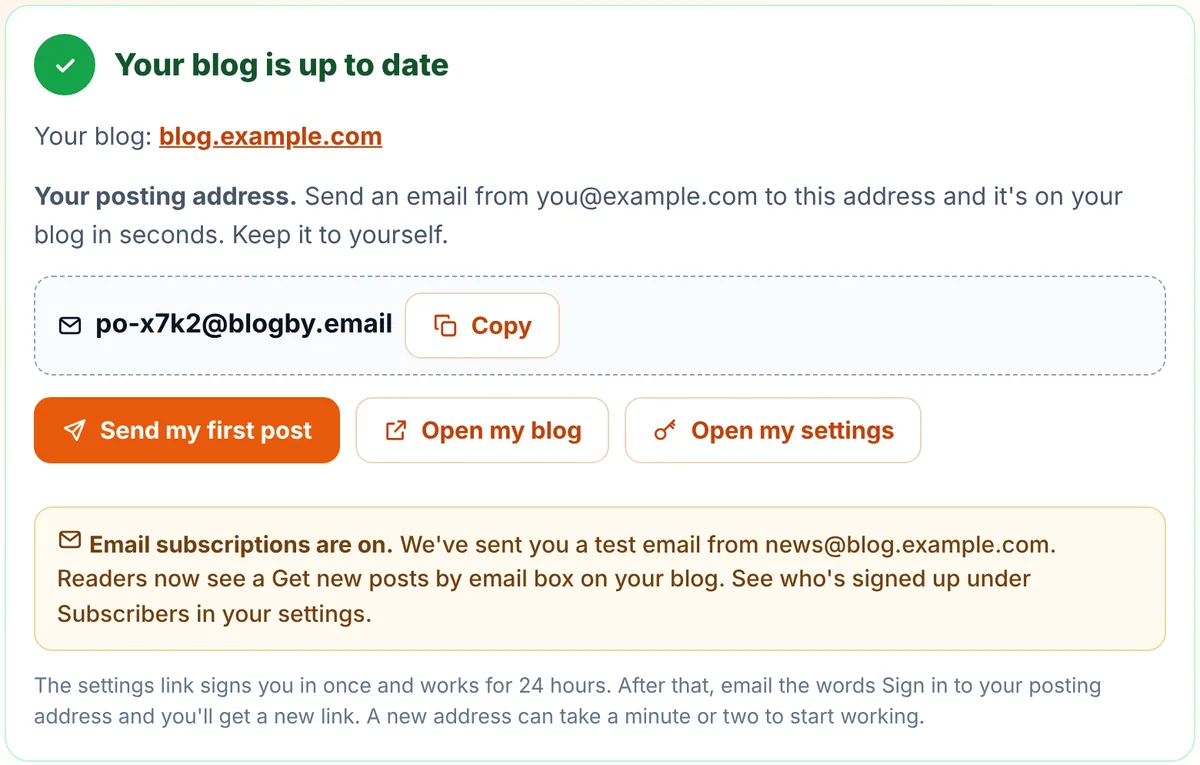
The installer when it's done.
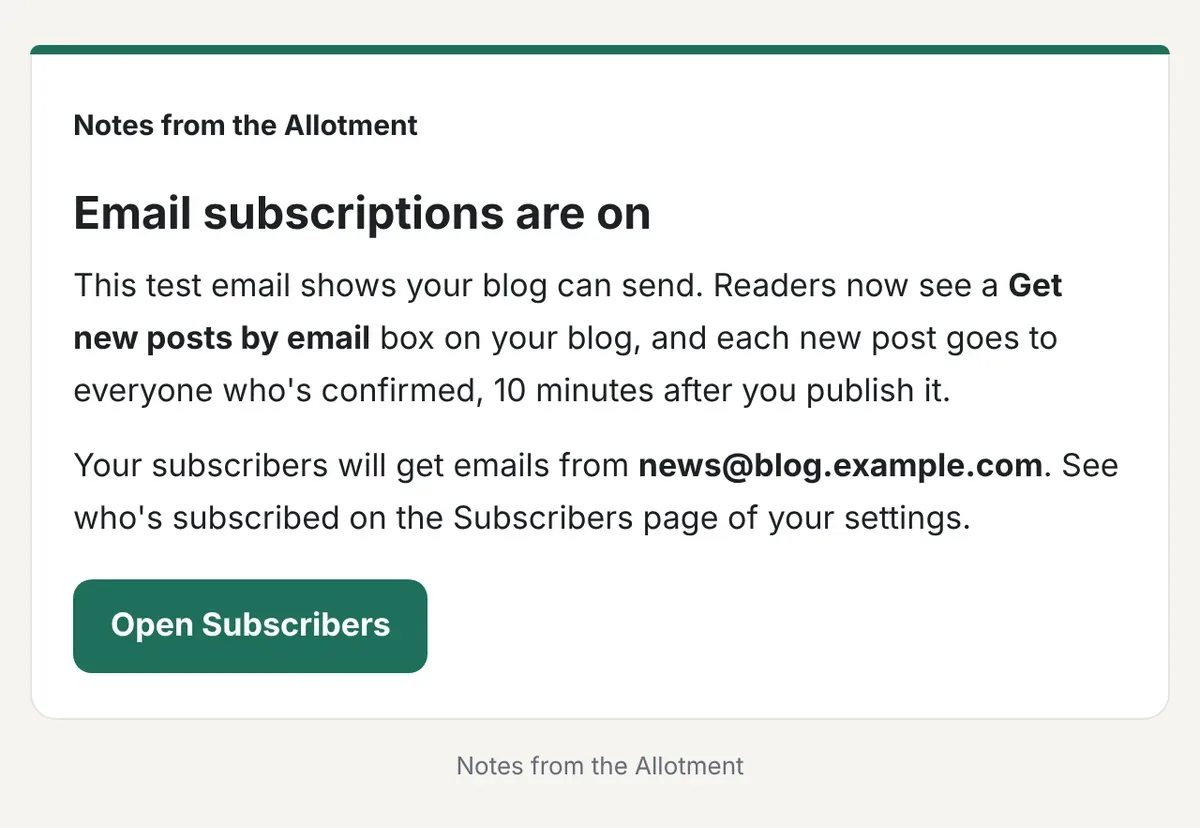
The test email in your inbox.
// your readers
What your readers see.
// a sign up box
A sign up box on your blog.
It's on your home page and under every post. Readers type their email address and press Subscribe.
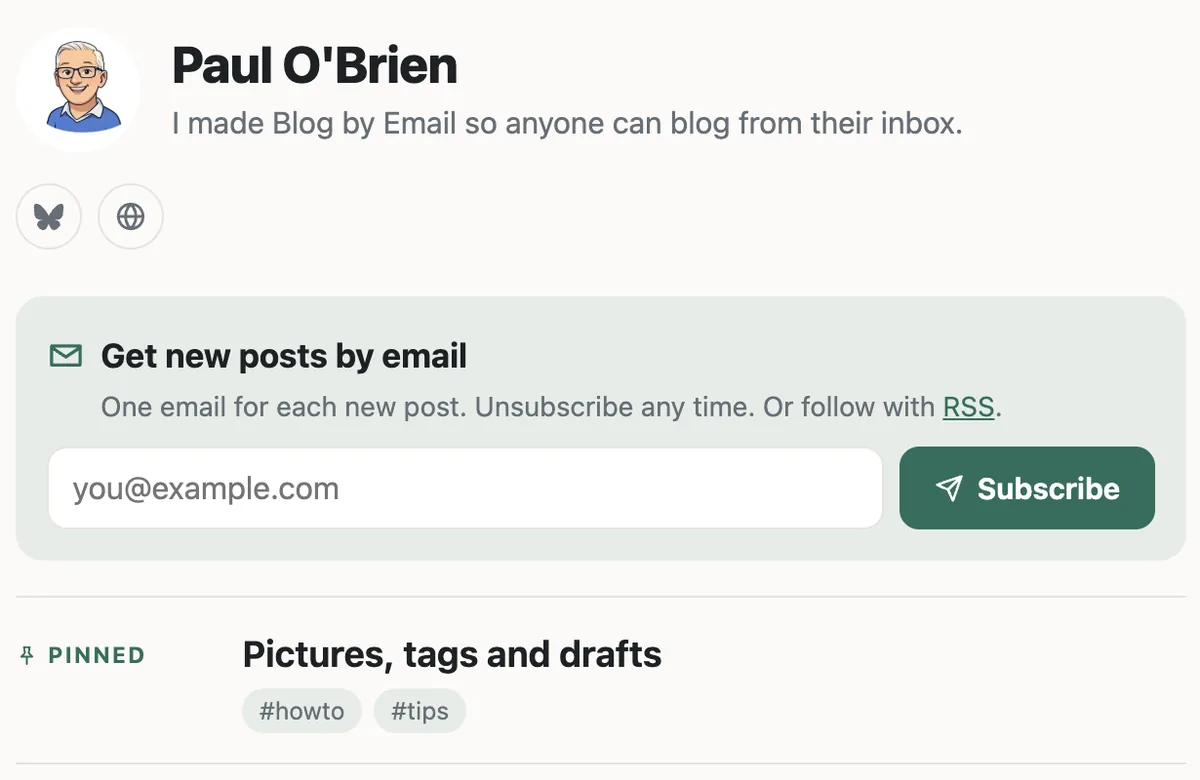
On our demo blog.
// one email to confirm
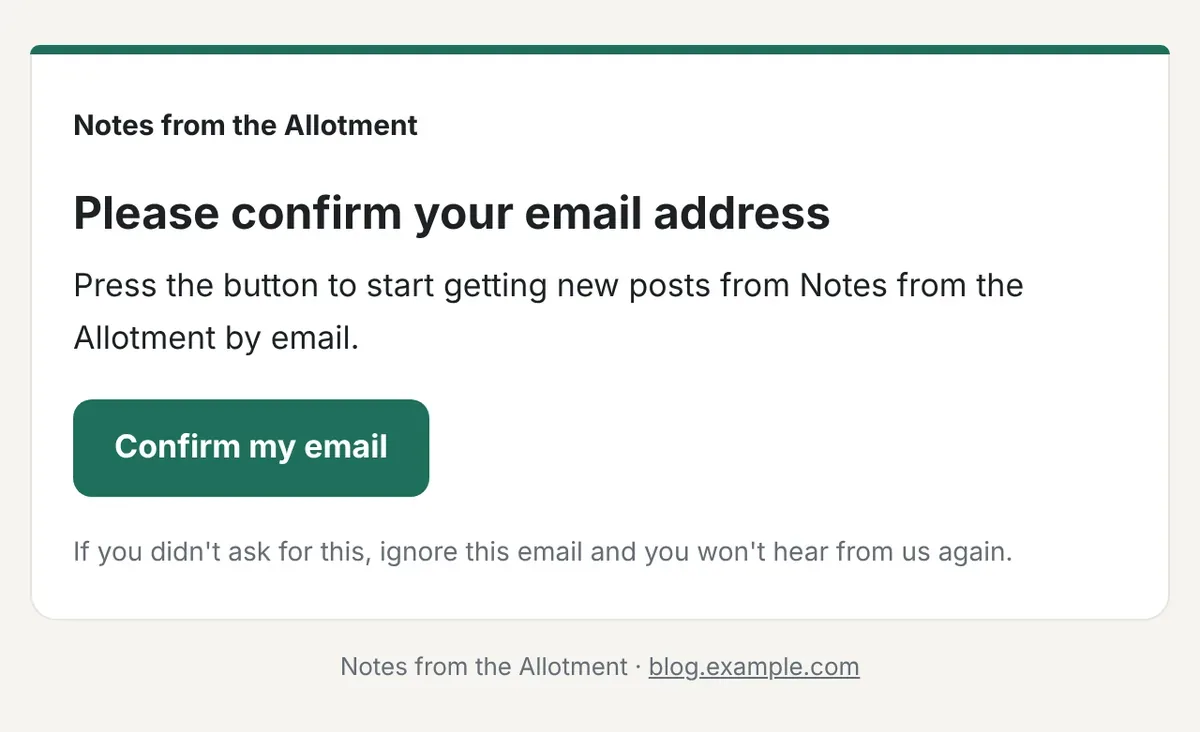
One email to confirm.
They get an email with a Confirm my email button. Nothing else is sent until they press it, so nobody can sign up someone else.
// each new post
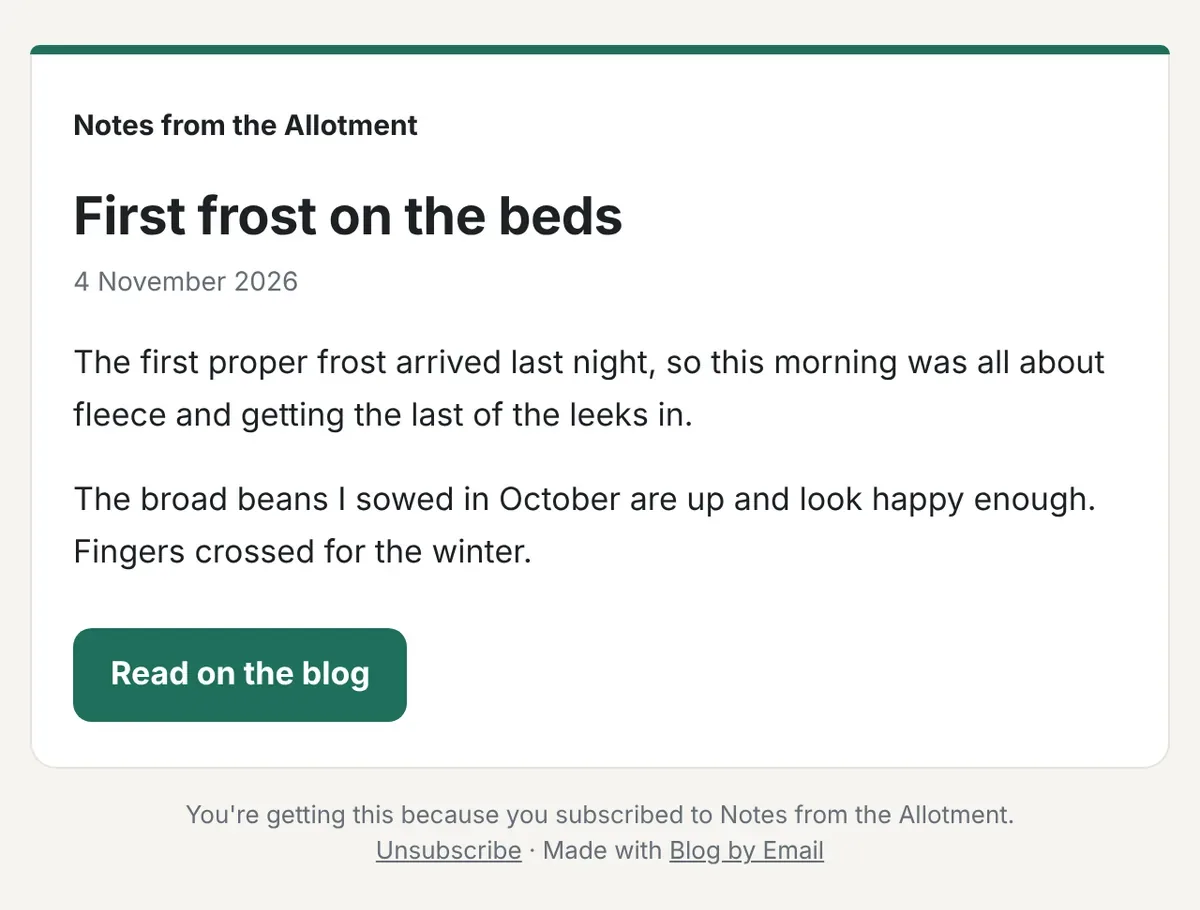
Each new post, 10 minutes after you publish.
The wait gives you time to fix a typo. The whole post is in the email, with a link to read it on your blog and an unsubscribe link at the bottom. Nothing is tracked.
// your subscriber list
Everything is on the Subscribers page.
See who's signed up, who's still to confirm and how far each post's emails have gone. Remove anyone, download your list as a spreadsheet or turn subscriptions off.
Your list is kept only in your own Cloudflare account. We never see it. Turn subscriptions off and your list is kept for when you turn them back on.
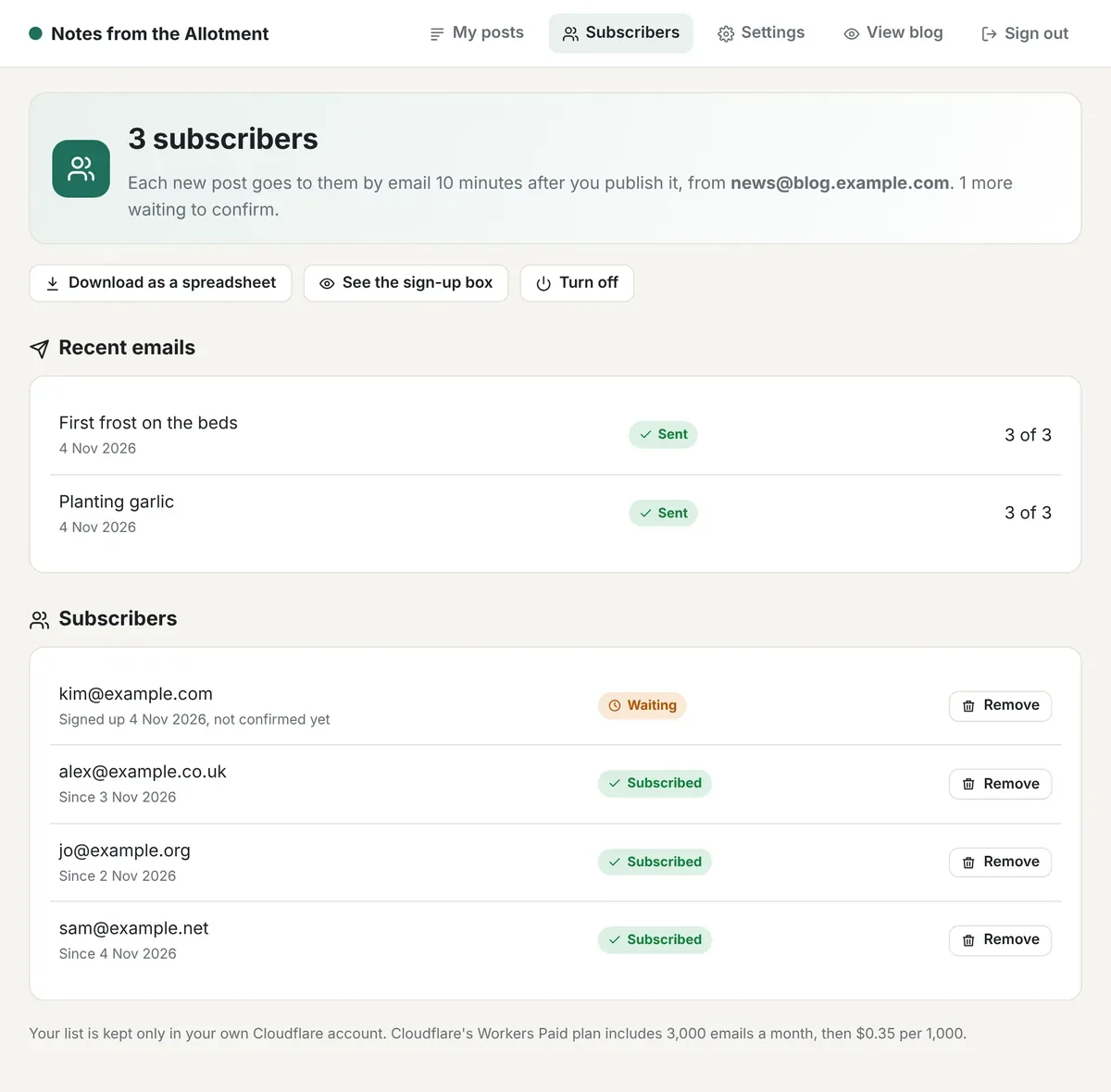
The people and posts are examples.
// questions
If something goes wrong.
It says my account isn't on Workers Paid
Choose Workers Paid on Cloudflare's plans page, then go back to the installer and press Try again. It can take a minute for Cloudflare to catch up.
It says my blog needs to be on my own domain
Email has to come from a domain you own. Open the installer, pick a domain under Where your blog lives and tick email subscriptions in the same update.
I already use Cloudflare Email Routing on my domain
That's fine. Your email keeps working as it is. The installer adds only the records for sending and leaves the ones Email Routing looks after alone.
My Subscribers page says emails aren't going out
It shows Cloudflare's reason, such as the plan ending or a daily limit. Fix that and the emails carry on from where they stopped. Hitting a daily limit just moves the rest to the next day.
Readers say the emails go to spam
New sending addresses can take a few days to build trust. Ask readers to add news@ at your blog's domain to their contacts, and keep posting. Every email has the unsubscribe headers mail providers look for.
Still stuck?
Email hello@blogby.email with your blog's web address and a screenshot, and we'll help you.
Ready when you are.
Stay in the loop
Subscribe for updates.
Leave your email and I'll tell you when there's a new version of one of my apps, or a new project to try. You can also use every tool on this site, free.